If you searched “automate CAD drawings” or “drawing automation”, here’s the short answer: for products that vary per order, the most reliable way to automate drawings is to generate them from the product’s rules rather than from a copied file. The drawing becomes an output of the configuration, not a document someone edits.
Quick fit check before you read on. If you make the same handful of products and just want drawings out of your CAD tool faster, this isn’t that post. Your CAD tool’s own templates and drawing automation features are probably the right fix. This post is for the other case: the product is mostly the same every time, but the length, the hole count, the mounting option or the number of sections change with each order, and someone has to produce a new drawing every time. If that’s you, keep going.
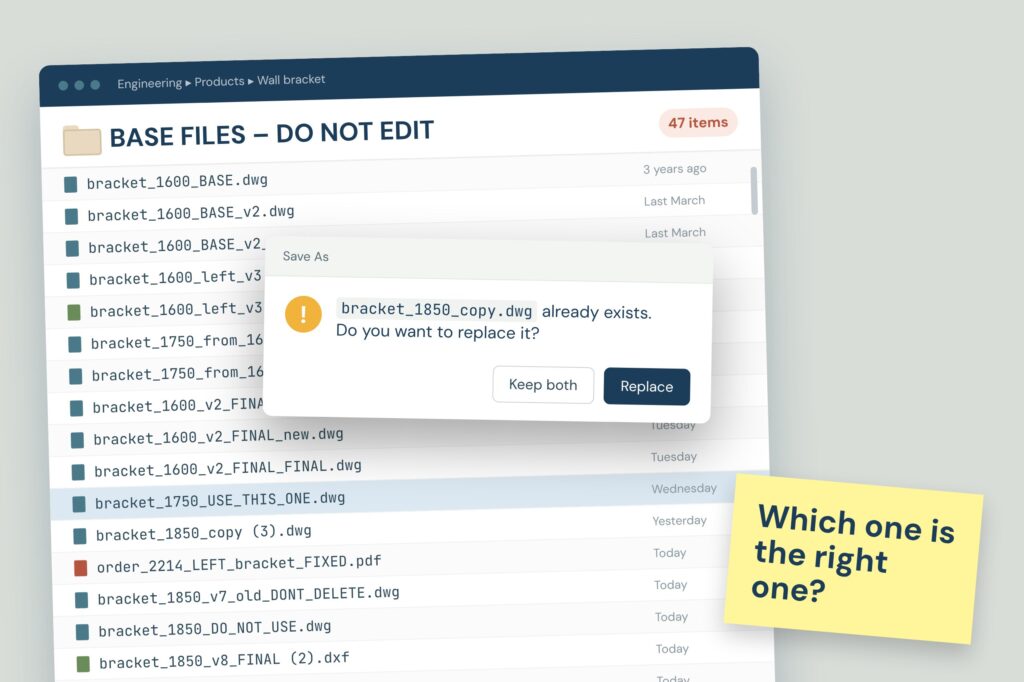
It’s common for engineering teams to have a folder called “BASE FILES – DO NOT EDIT”. Every file in it has been edited. The workflow is always the same: a request comes in for “the same as order 2214, but 1 850 mm instead of 1 600 and with the left-hand bracket”. Someone finds order 2214, does Save As, changes the length, fixes the bracket, and then spends twenty minutes checking that the hole pattern, the cut list and the title block followed along. Usually they have. But the one time the hole spacing doesn’t update, the team finds out when the part doesn’t fit on site. That phone call takes longer than the drawing did.
If that sounds familiar, you’re not careless. You’re doing by hand something that has a rule behind it, and humans are bad at applying the same rule a hundred times in a row.
Where manual variant drawings go wrong, again and again:
- You “Save As” from the closest previous order, change the main dimension, and miss one feature that should have scaled with it: a hole pattern, a stiffener count, a weld length.
- The title block still says the old order number, the old customer or the old revision, because it’s the one thing nobody looks at until production does.
- The customer changes one option after approval, and the full drawing package (assembly, part drawings, DXF for the laser) has to be redone and re-checked by hand.
- Two people make “the same” variant two different ways, so the shop floor gets drawings that don’t look alike for products that are supposed to be identical.
- Sales promised a combination that can’t actually be built, and you find out when you start drawing it, after the quote has already gone out.
- The real rules (which brackets go with which lengths, how many supports a 3-metre version needs) live in your head, so your vacation becomes everyone else’s queue.
In this post we’ll go through the usual ways engineers try to automate drawings, where each one breaks down for made-to-order products, what it looks like when the drawing comes straight out of the configuration, and how to introduce that without ripping up your current process.
01 What are the options for automating CAD drawings?
There are three common approaches. All of them work for something, but only one is built for products that change per order.
Templates and copy-from-previous
A master file per product family that you copy and edit. Fast to set up and fine for a few variants a month. It breaks down because every copy is a manual edit, and every manual edit is a chance to miss something. The rules still live in the engineer, not in the file.
CAD scripting and design tables (macros, iLogic, SOLIDWORKS design tables, Excel-driven models)
You drive the model from parameters and let the CAD tool regenerate the drawing. This works well and is a real step up. It breaks down as option counts grow: every new combination is another edge case in the script, the logic is only readable by whoever wrote it, and the result still needs an engineer with a CAD license to run it for every order.
Rules-based configuration that outputs drawings
You define the product’s rules once (valid dimensions, which options go together, what scales with what) in a configurator. A customer or salesperson picks a valid configuration, and the drawing and CAD files are generated from it automatically. Nobody opens the CAD tool for a standard variant.
The third approach is what a product configurator with automatic CAD output does. It’s the one built for “the product is different every time, but the rules for what’s in it are not.”
02 Is this a CAD problem? Not really.
Zoom out and you see the same pattern at every manufacturer of customizable products: enclosures, conveyors, shelving, railings, ramps, building components, machine frames. A customer says “the same, but wider” and someone translates that sentence into geometry, a drawing and a file for production. By hand, under time pressure, correctly, every time.
The drawing is just where the problem shows up. The real issue is that the knowledge of “what this specific variant looks like” only exists in a person or in a script one person maintains. Every manual drawing re-derives that knowledge from scratch. That’s why getting faster at CAD doesn’t fix it. You end up redrawing the same thing faster.
03 How does drawing automation work in a configurator?
The rules sit in one place, and the drawing is generated from them. You define the product parametrically once. The configurator only lets users pick combinations that can be built, and every valid configuration produces its outputs automatically: a 2D PDF drawing, DXF files for cutting, and 3D formats like STEP and BIM if the next step needs them.
We build this with DynaMaker, a platform for building web-based product configurators where every valid configuration generates production-ready files. You define your product’s rules once, and the configurator handles the variants. Because the 3D view, the drawing and the export all come from the same parametric CAD model, what the customer sees is what the drawing shows and what production gets.
You can try live examples here.

04 What changes when the drawing comes from the configuration?
The same list as above, item by item:
- A feature didn’t scale with the main dimension? It can’t fall behind, because hole patterns, stiffener counts and weld lengths are tied to the dimension in the rules. Change the length and everything that depends on it follows.
- Stale title block? The drawing is generated per configuration, so it’s created fresh from that order’s data instead of copied from the last one.
- Customer changes an option after approval? Change the configuration and the drawing, DXF and other files are regenerated. Nobody has to re-check a hand-edited package.
- Two people draw the same variant differently? There’s one way to produce a variant: the rules. Every drawing of a given configuration comes out the same.
- Sales promised something that can’t be built? Invalid combinations aren’t selectable, so the impossible quote never leaves the building.
- The rules live in your head? They live in the configurator now, as product logic someone else can read and maintain. Your vacation stops being a production risk.
05 Where should drawing automation fit into your process?
Put it where the drawing work starts today: the moment a custom request turns into something that has to be quoted and produced. If requests arrive as emails or calls, the configurator can sit in front of that step, either on your website for customers or as an internal tool for sales. That way the configuration, and its drawing, exist before anyone opens a CAD file.
You don’t have to switch everything at once. Pick one product family, ideally the one with the most requests or the most mistakes. Build the configurator for that, run it next to your current process for a few orders, compare the drawings, and let it earn your trust before you retire the base files.
The same configuration also gives you the parts list. See how to get automatic BOMs from configurations. If your rules currently live in a spreadsheet, see how to migrate an Excel sheet to an online product configurator. And for the day-to-day side of the same problem, read Make it like yesterday’s quote, but with changes in X, Y and Z.
06 Quick answers.
Can CAD drawings be generated automatically?
Yes. If the product is defined parametrically, drawings can be generated from parameters instead of drawn by hand. CAD tools do this with design tables and scripts. A configurator does it from product rules and doesn’t need an engineer to run the CAD tool for each order.
What is the difference between drawing automation and a product configurator?
Drawing automation describes the result: drawings nobody made by hand. A product configurator is one way to get there, built for products that vary per order. It also validates the configuration and produces the other files, like DXF, STEP and BIM, from the same data.
Do you need to know CAD scripting to automate drawings?
For macros and iLogic, yes, and someone has to maintain the script. With a configurator platform you still define the rules, which takes real engineering effort. But it happens once per product family, and from then on users configure without touching CAD.
Which file formats can be generated automatically?
With DynaMaker, every valid configuration can produce 2D PDF drawings and DXF files, and STEP and BIM files for 3D and building workflows. Which formats you get depends on the plan. See plans.
Is automatic drawing generation worth it for low volumes?
It depends more on how often variants repeat than on volume. If you redraw near-identical variants every week, you’ll make the setup time back quickly. If every order is a true one-off with no repeatable structure, a configurator won’t help much.
Try it on your own product
You don’t need a budget to find out if this works for your product. Build a configurator for free, set it up for one product family, and generate a drawing for a real order you did last month. If it matches, show it to whoever signs off on these things. If it doesn’t, you’ve lost an afternoon, not a budget line.
Good luck, and may “BASE FILES – DO NOT EDIT” finally live up to its name.